Skip to content

Instant Preview

Lay any marble or tile in the room. In seconds.

Pick a marble or tile from your catalogue, pick a preset room scene, and turn the phone round. The size, the pattern and the joints read the way they will on site.

At a glance

  • Preset room scenes

    Ready-made rooms, so there's nothing to set up at the counter.

  • True perspective

    Tiles shrink into the room the way a real floor does.

  • Compare / Original

    One tap shows the room before and after.

  • Unlimited on paid plans

    Without a plan, it works on the first marble of each category.

Laying patterns

Six ways to lay a floor.

Every pattern in the app, painted here with Mousy Mountain.
01

Stack Grid

Tiles aligned in a straight grid. Clean and modern.

02

Staggered 50%

Each row shifted by half a tile, like brickwork.

03

Staggered 33%

Each row shifted by a third, for a softer run.

04

Bookmatch

Neighbouring slabs mirrored so the veins meet.

05

Chevron

Angled tiles meeting in a continuous V.

06

Diamond 45°

The grid turned 45°, for entrances and feature floors.

Realism controls

Tune it until it's their floor.

Tile size, scale, room width and rotation, plus the four panels below. Every change shows straight away.

Laying pattern

Stack Grid, Staggered 33% or 50%, Bookmatch, Chevron or Diamond 45°. Rotate it to suit the room.

Laying Pattern panel in the app

Grout joints

Set the width and opacity, and pick White, Light Grey, Dark Grey, Charcoal or Beige.
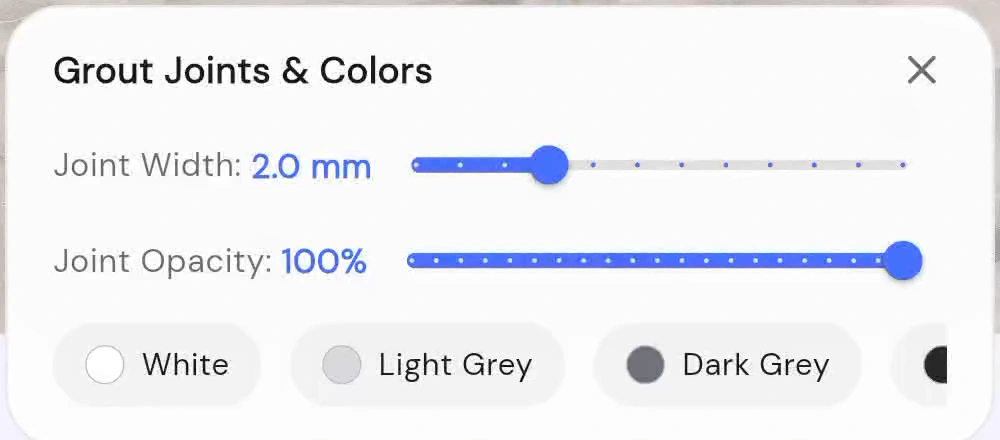
Grout Joints and Colors panel with width, opacity and colour

Surface finish

Glossy, Honed or Matte, so the customer sees the shine they're paying for.

Surface Finish panel with Glossy, Honed and Matte

Real-world lighting

Furniture and contact shadows, room light and ambient brightness, tuned to the room.
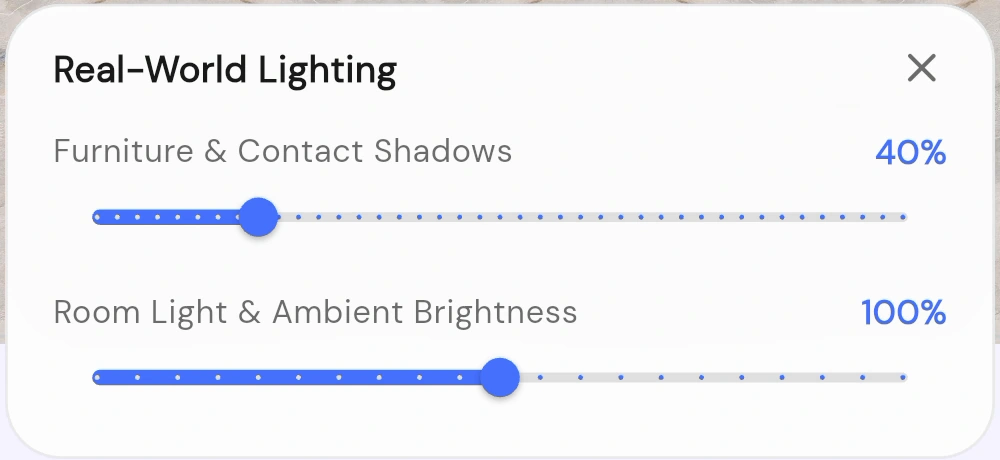
Real-World Lighting panel with shadow and brightness sliders

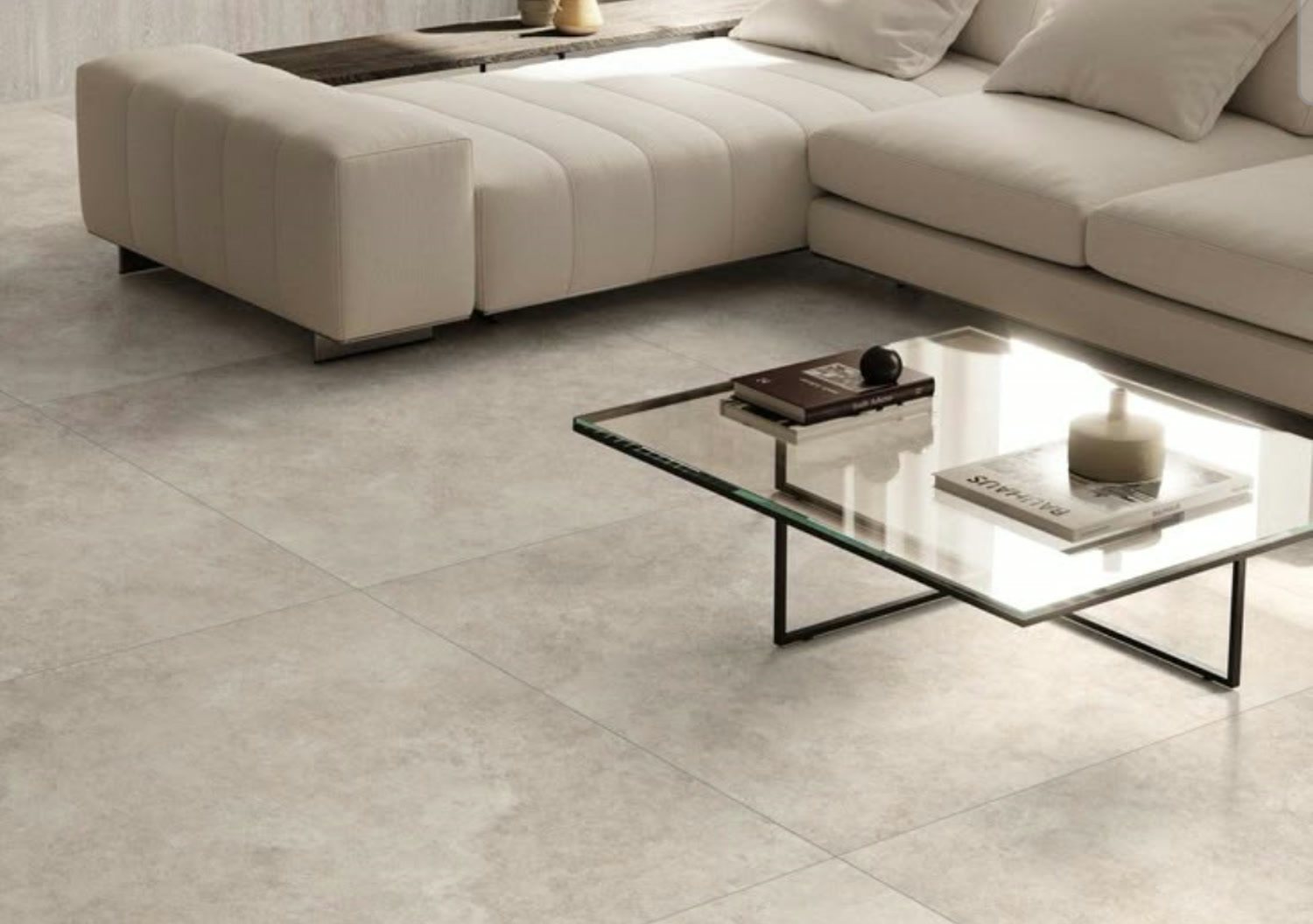
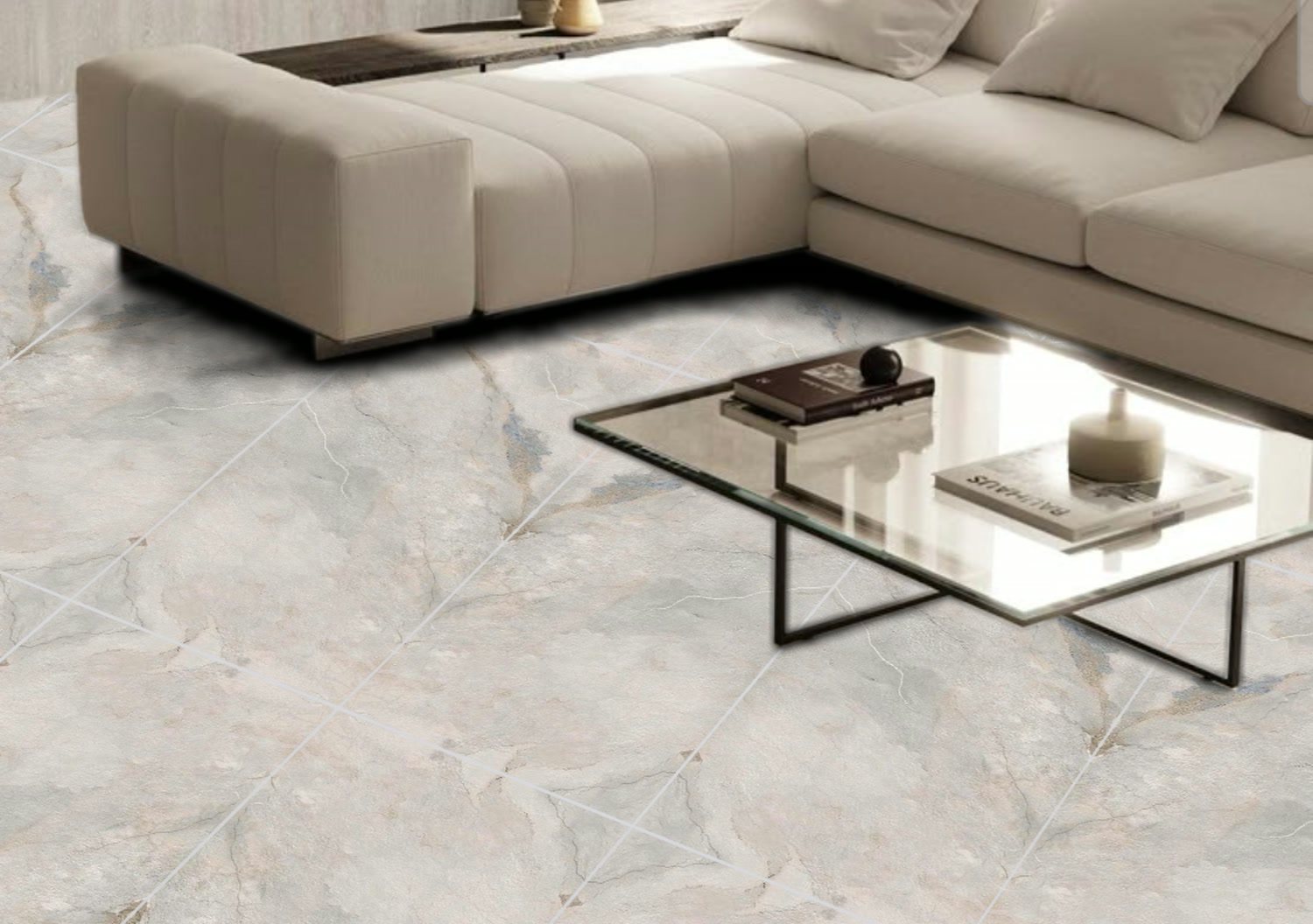
Compare / Original

Before and after, one drag apart.

Drag the handle, or use the arrow keys.
Living room with its original grey floor
The same living room with Mousy Mountain marble in Bookmatch
Use the left and right arrow keys to compare.
Plus and Custom

Want it on the customer’s own room?

Instant Preview uses preset room scenes. To lay it on a photo of your customer’s own room, use Studio Render.

See Studio Render

Request a demo

Show every design in a room, at the counter.

See Visionum with your own catalogue. We'll set up a demo around the marbles and tiles you actually sell.

Compare plans